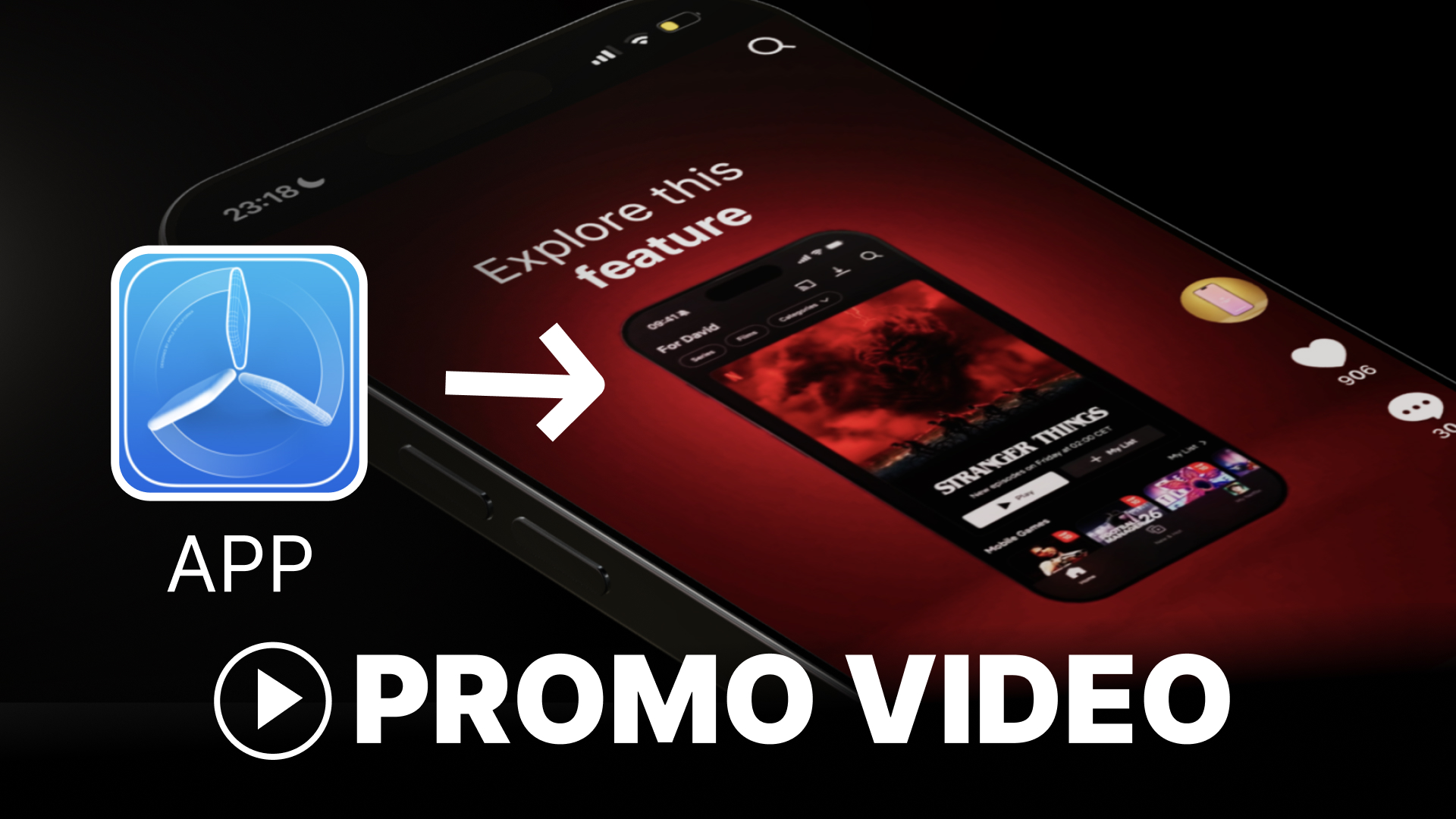
App Store and Product Hunt both reward clarity: show the product in context, keep motion smooth, and finish with a strong end card (logo + store badges). You don’t need After Effects or Blender. Below is a workflow that works for iOS/Android store previews, Product Hunt gallery video, and short social clips, using PromoGen for 3D phone (and laptop) mockups and Canva to cut and brand.
And if you feel like watching this tutorial instead of reading it, here is a video tutorial on how to create a short app ad based on 3d mockup video templates:
What you need
A few screenshots or a short screen recording of your app
A free PromoGen account (promogen.app)
A free Canva account for editing
Time: roughly 20–40 minutes for a first version, depending on how many scenes you cut.
Why not After Effects (for this job)
After Effects is great for motion pros, but for launch assets you usually need:
Multiple short clips (store rules + PH + TikTok/Reels) Fast iteration when you change a screenshot Predictable export (1080p / 4K) without a heavy project file PromoGen gives you ready-made 3D device animations; Canva gives you music, text, and end card. Enough for store and launch pages.
Step 1: Prep your visuals
App Store–style: use real UI—home screen, one “hero” feature, onboarding if it’s strong. Product Hunt–style: same, but favor one clear value prop in the first 3 seconds.
Crop to a vertical ratio if you’re aiming at Reels/TikTok/short PH clips; PromoGen supports vertical templates. For wider store or web hero clips, use horizontal or laptop templates in PromoGen.
Step 2: Build mockup clips in PromoGen
Sign up at promogen.app and open the editor.
Upload your screenshot or recording and crop to the safe area.
Pick an animation (try 3–5 different ones—you’ll only use the best cuts in Canva).
Tweak background color, device (iPhone/Android/laptop), and lighting so it matches your brand.
Export in HD or 4K (4K is useful if you reuse clips elsewhere). Export several short clips (different angles or features) so Canva has material to work with. Same idea as your “five exported videos” tutorial.
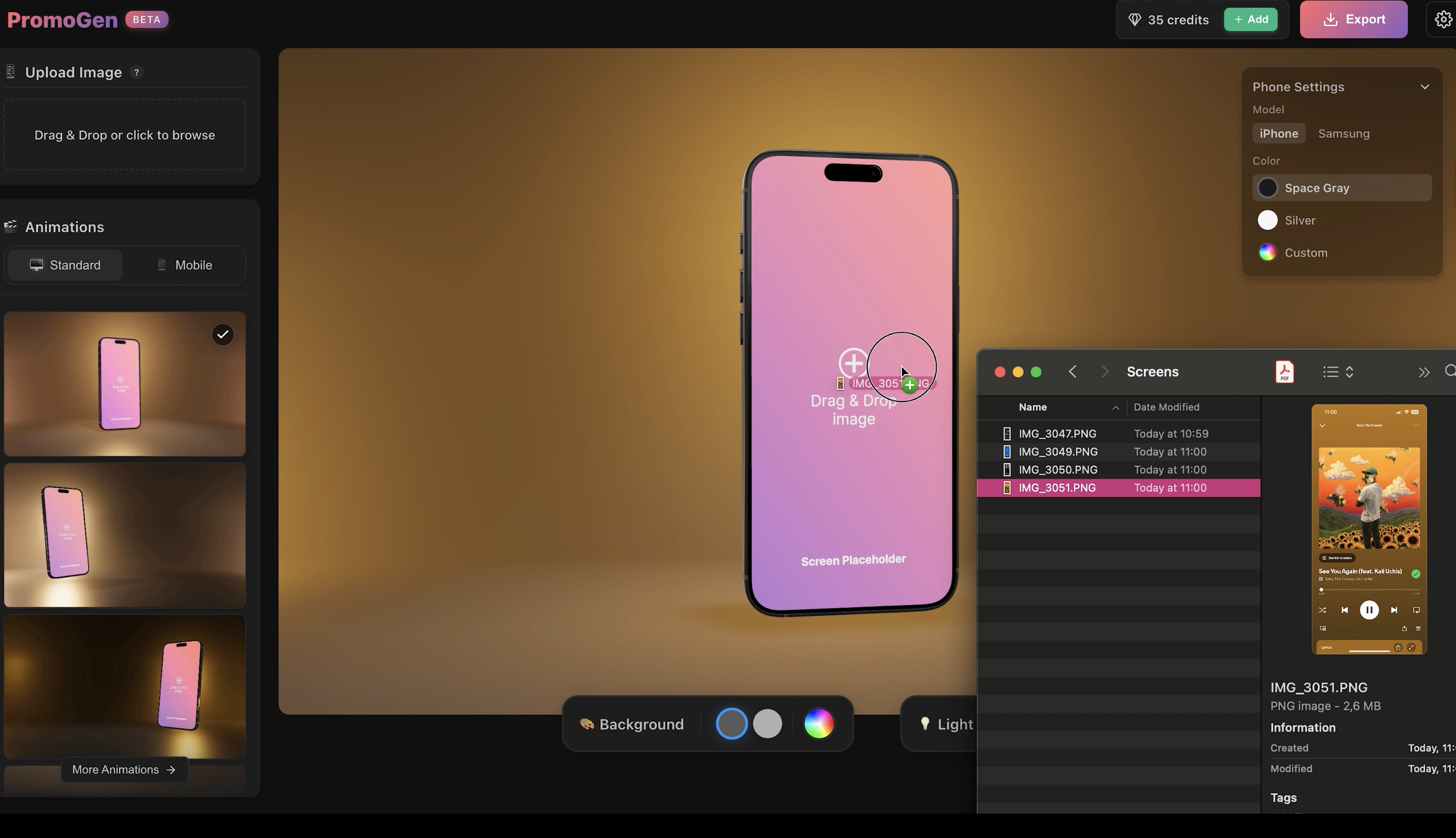
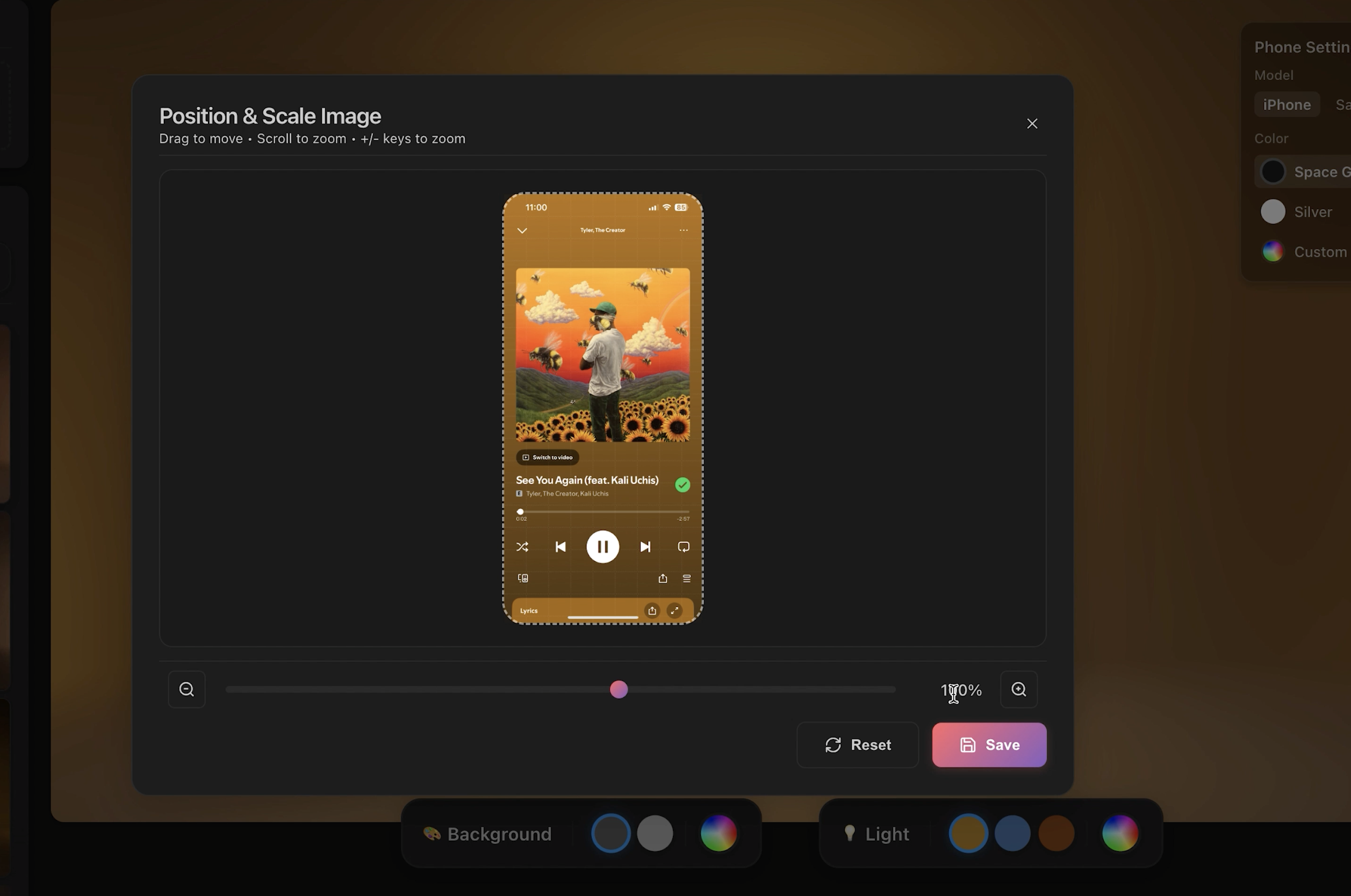
Once uploaded, you can:
Choose from different animation styles
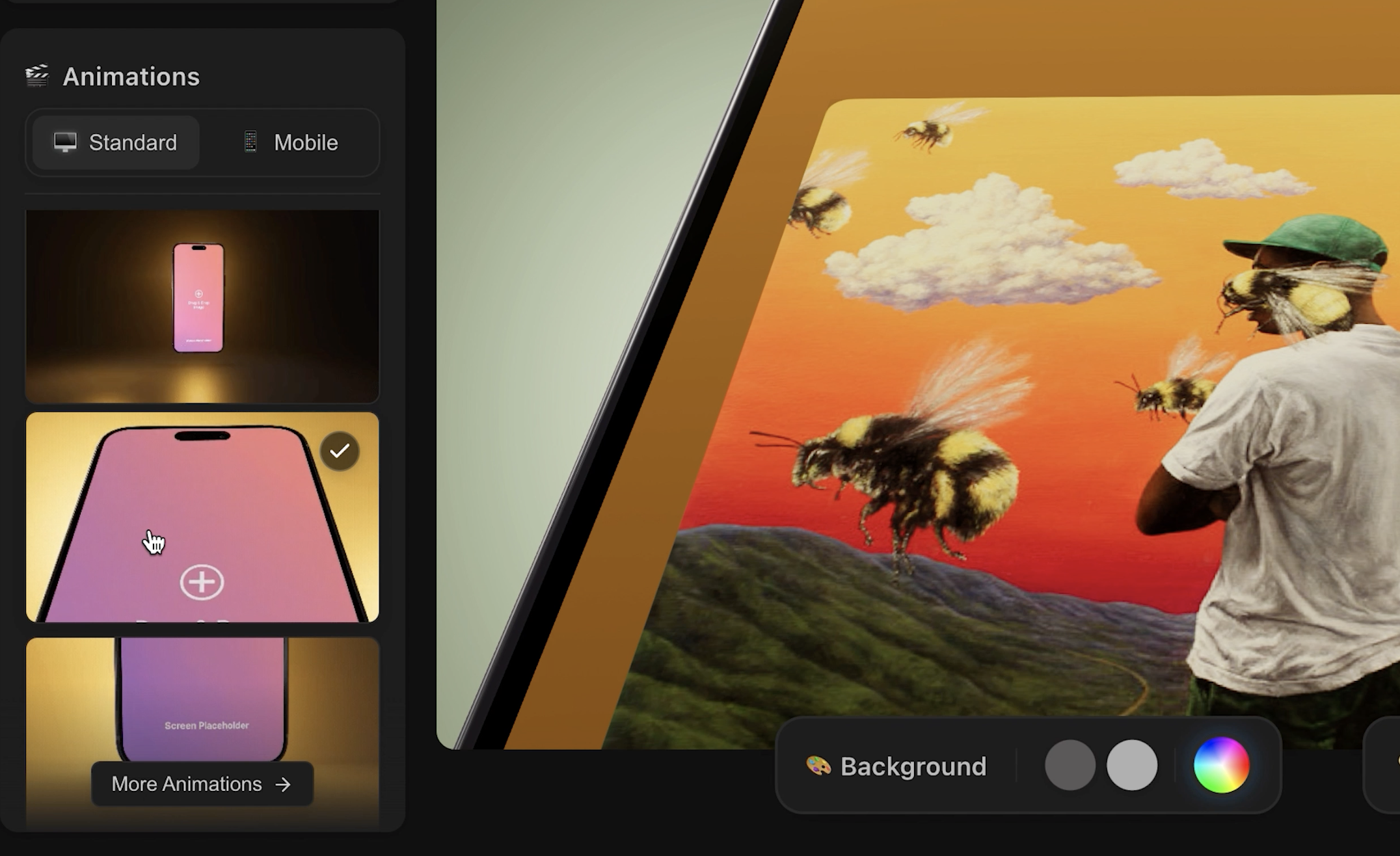
Pick a background color, phone model, and adjust lighting and shadows to match your app's vibe
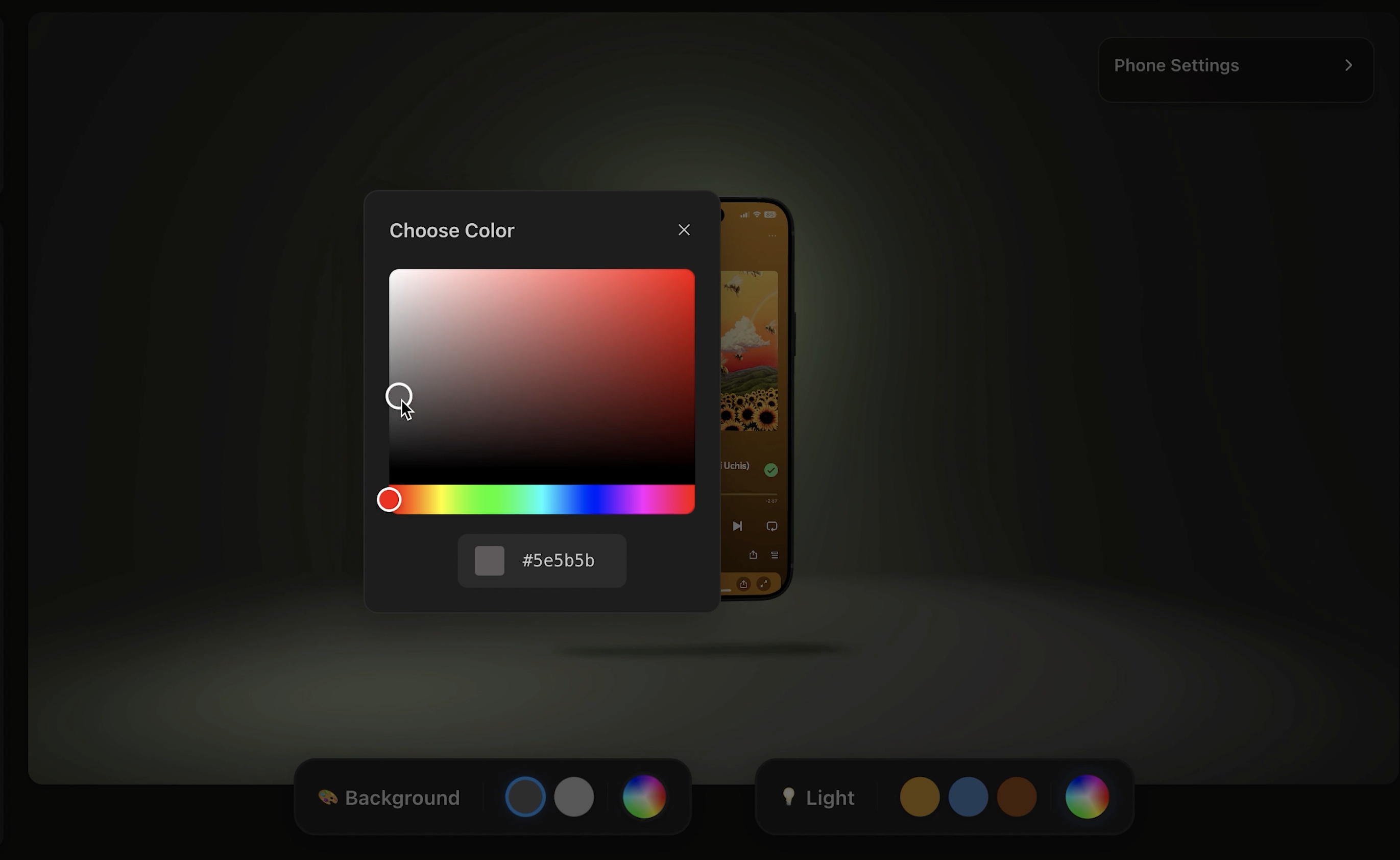
Then click Export. You can export in HD or 4K.
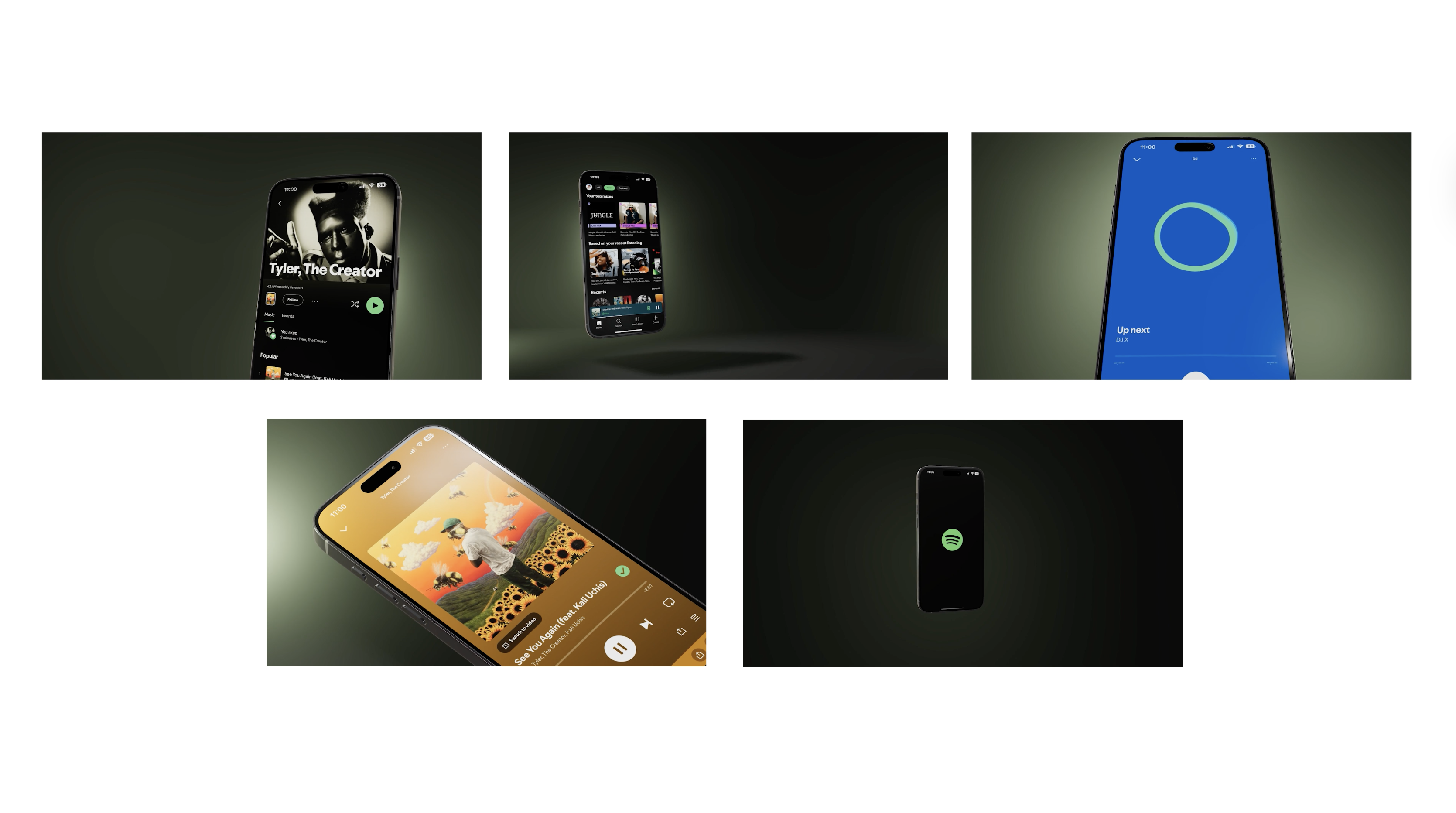
I created about five different clips using different animations and screenshots:
Some show full phone animations
Others zoom in on close-ups for feature highlights
✂️ Step 3: Edit in Canva (music, text, end card)
Create a new video project in Canva.
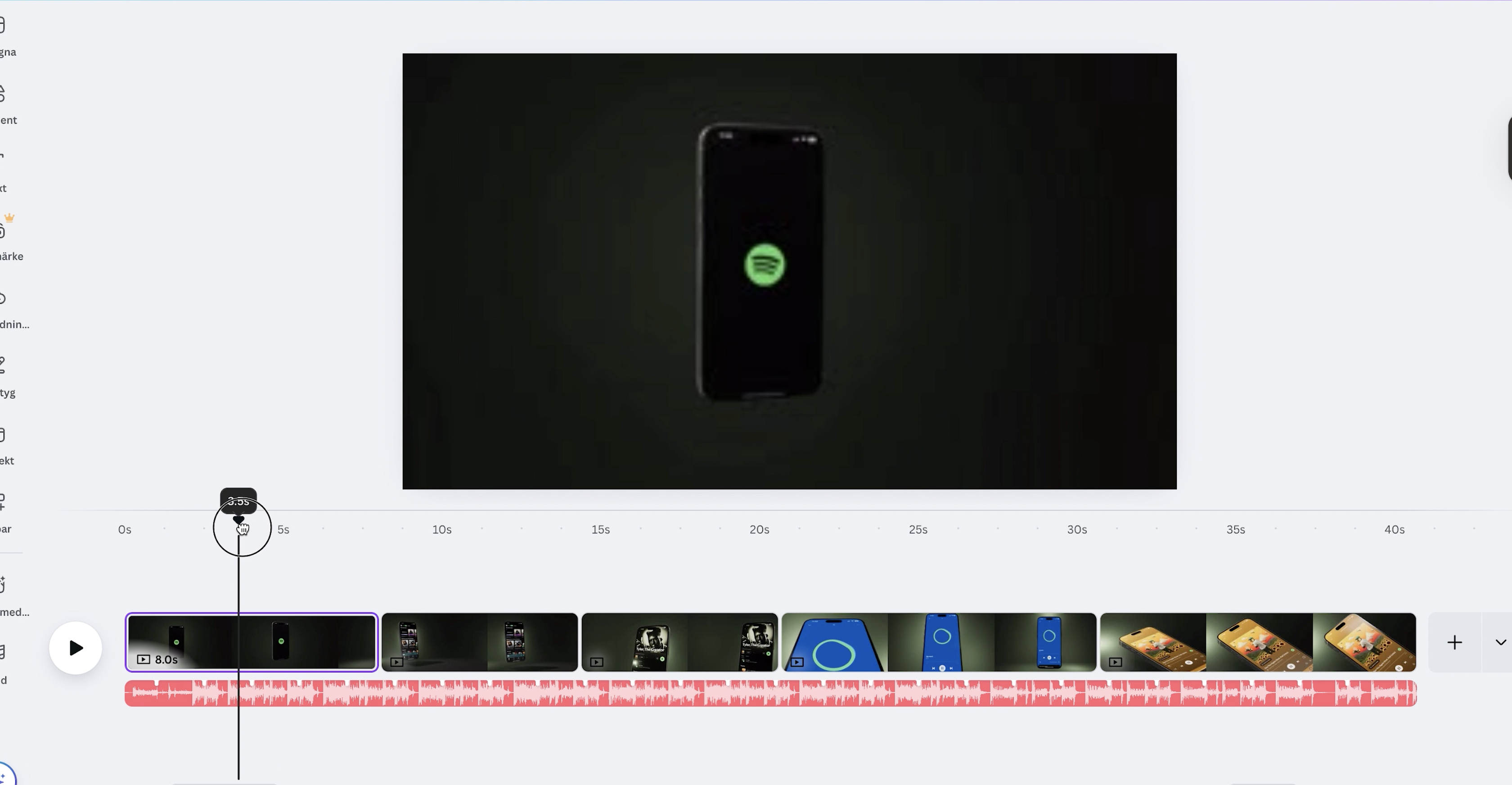
Upload the PromoGen exports into the timeline.
Music: use Canva’s free library or a licensed track (Artlist/Epidemic if you have budget). Match energy to your app. Calm for productivity, punchier for consumer apps.
Text: one short line per scene (feature name + benefit). Keep on-screen text readable on mobile.
End card (important for PH and ads): Logo App Store / Google Play badges (official assets) Optional: “Product Hunt” or launch date.
Trim so the first frame already looks intentional. Many people scroll with sound off.
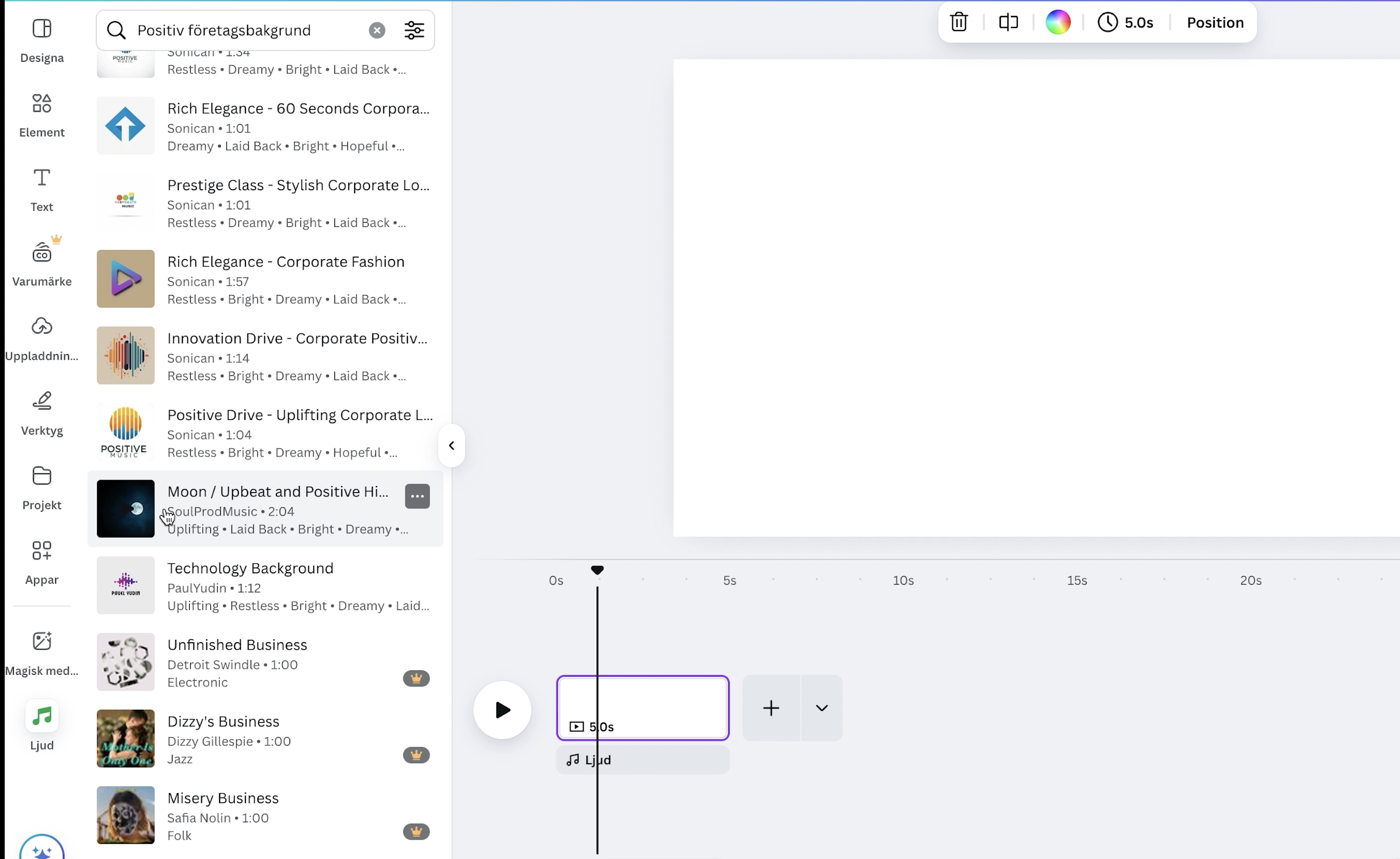
Upload the clips you exported from Promogen.
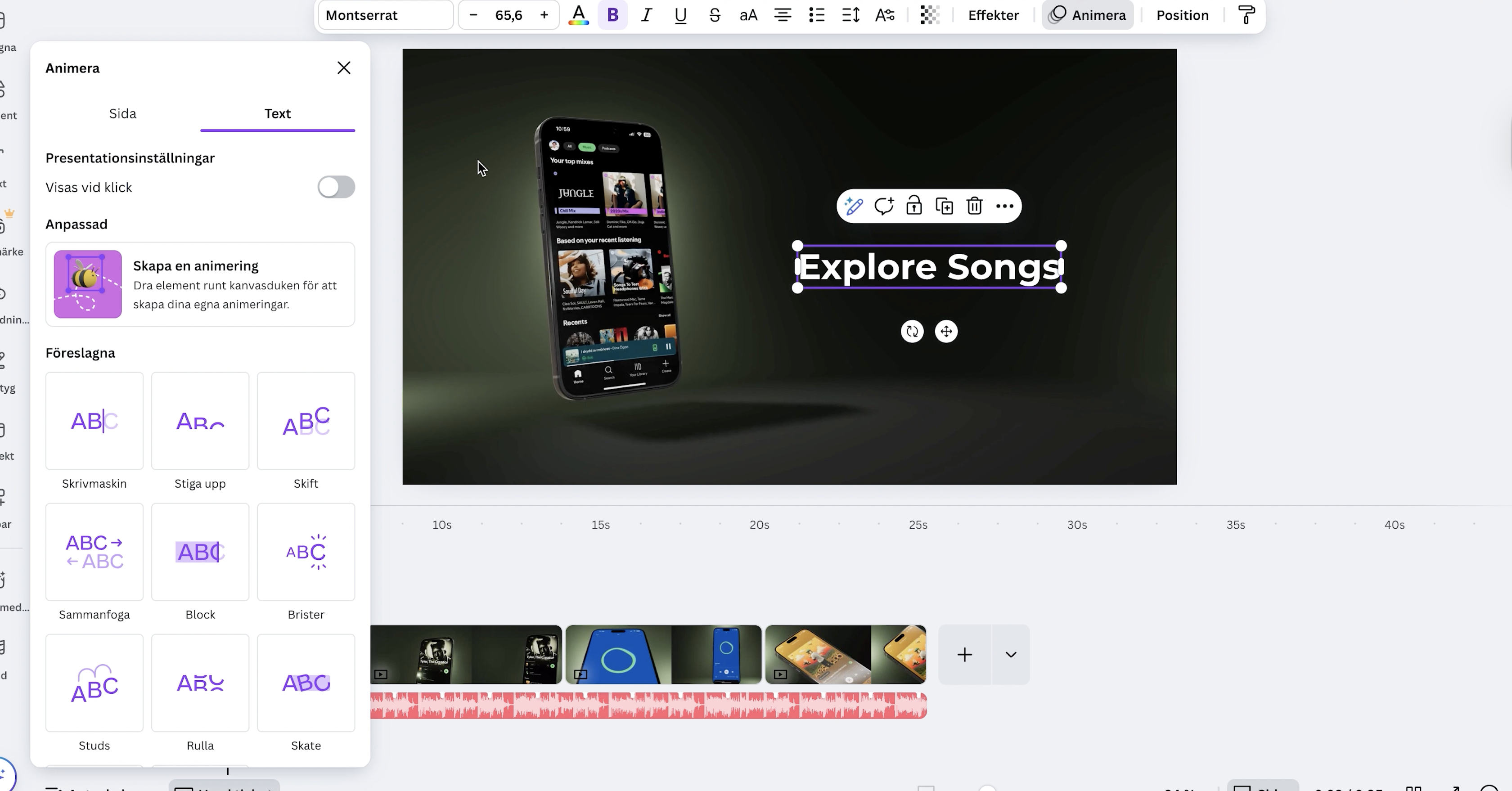
📝 Add Text
Use Canva’s text tool to describe your app features:
One text box per scene
Keep it short and readable
Place it opposite the phone to balance the layout
Add some subtle text animations like “fade in” or “slide up” for polish.
🏁 Finish with a Closing Slide
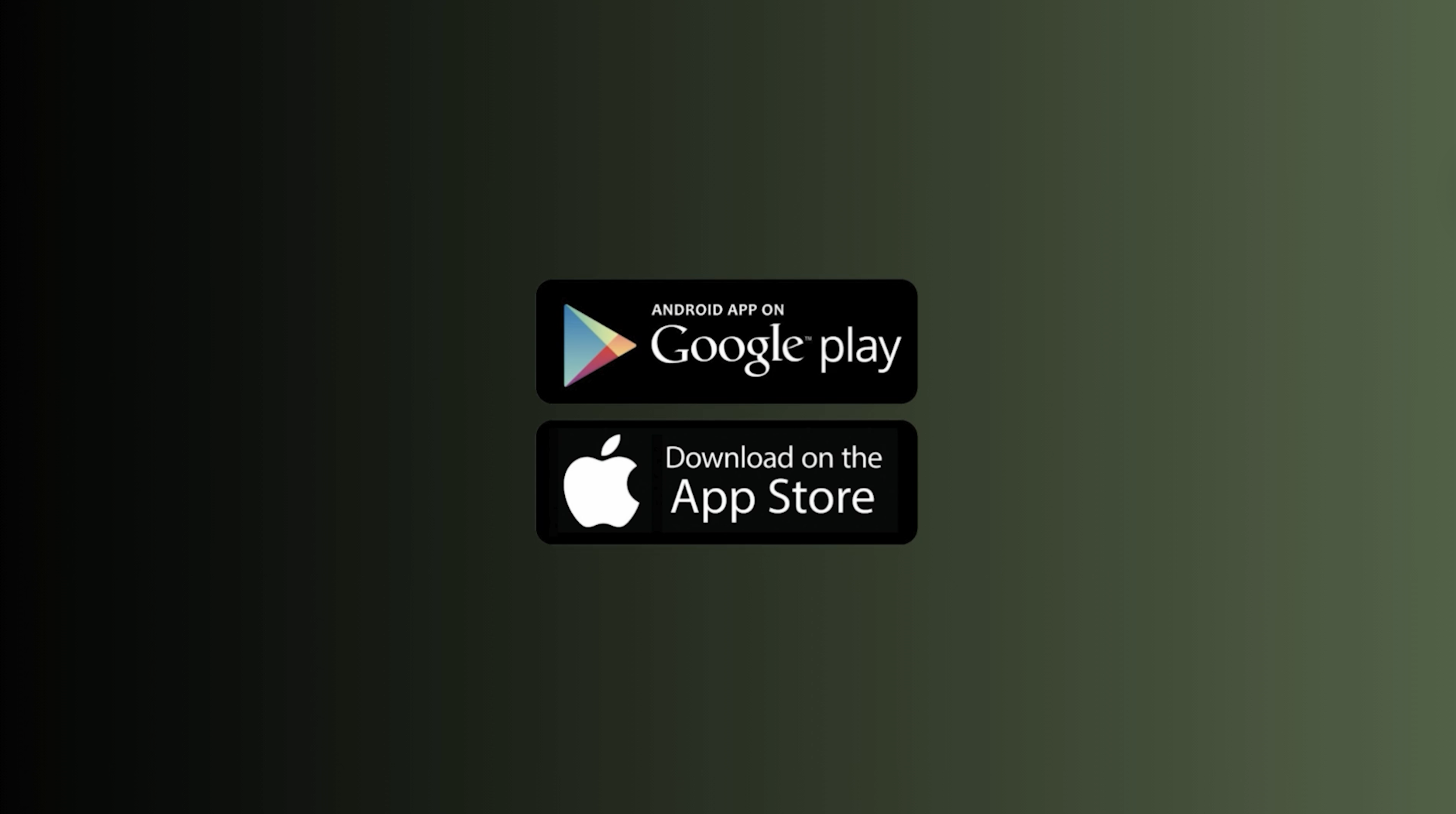
Create a final screen with:
A gradient background
Your app logo
Download buttons (App Store / Google Play)
You can search Google for “App Store download badge” and drag them in.
⏱️ Total Time: About 30 Minutes
That’s it — all done! 🎉
If I had done this the old-school way (Blender + Premiere Pro), it could’ve taken a day or more.
With Promogen + Canva, it took less than an hour.
💸 Cost snapshot
PromoGen: free tier for selected templates; paid for more exports/templates.
Canva: free tier is enough for many launch videos.
Compared to hiring motion design or learning AE, this stack is low cost and repeatable whenever you ship an update.
🙏 Thanks for Watching/Reading!
I hope this helped you build something awesome.
If you have:
Feedback on the site
Suggestions for new features
Or want more tutorials like this
... reach out on [YouTube/TikTok/etc]. or send me an email info.promogen@gmail.com
I built Promogen for creators like you. See you at the next tutorial! 👋